Contact Us

If you still have questions or prefer to get help directly from an agent, please submit a request.
We’ll get back to you as soon as possible.

Please fill out the contact form below and we will reply as soon as possible.

  • Contact Us
  • Home
  • Reports & Numbers
  • Getting Started with Reports

Gilbarco Passport Document Generation

Written by Mary Gilmore

Updated at February 27th, 2024

Contact Us

If you still have questions or prefer to get help directly from an agent, please submit a request.
We’ll get back to you as soon as possible.

Please fill out the contact form below and we will reply as soon as possible.

  • Set Up My Store
    First-Time Setup Connect & Sync Systems Before You Start Using XSite
  • Manage Prices, Items & Accounts
    Items Departments & Taxes Promotions Accounts
  • Track Inventory
    Purchase Orders & Receiving Counts & Adjustments Case Breakdown
  • Fuel & Pump Sales
    Fuel Setup & Suppliers Fuel Operations
  • Mobile & Scanning
    Devices & Setup Using XSite Mobile
  • Reports & Numbers
    Getting Started with Reports Sales & Price Book Reports Inventory Reports Fuel Reports Charge Accounts Reports Advanced Reports
  • Users, Roles & Settings
    Users & Access Suppliers & Regions
  • Fix a Problem
    Data Not Updating Numbers Don't Match Fuel Issues
+ More
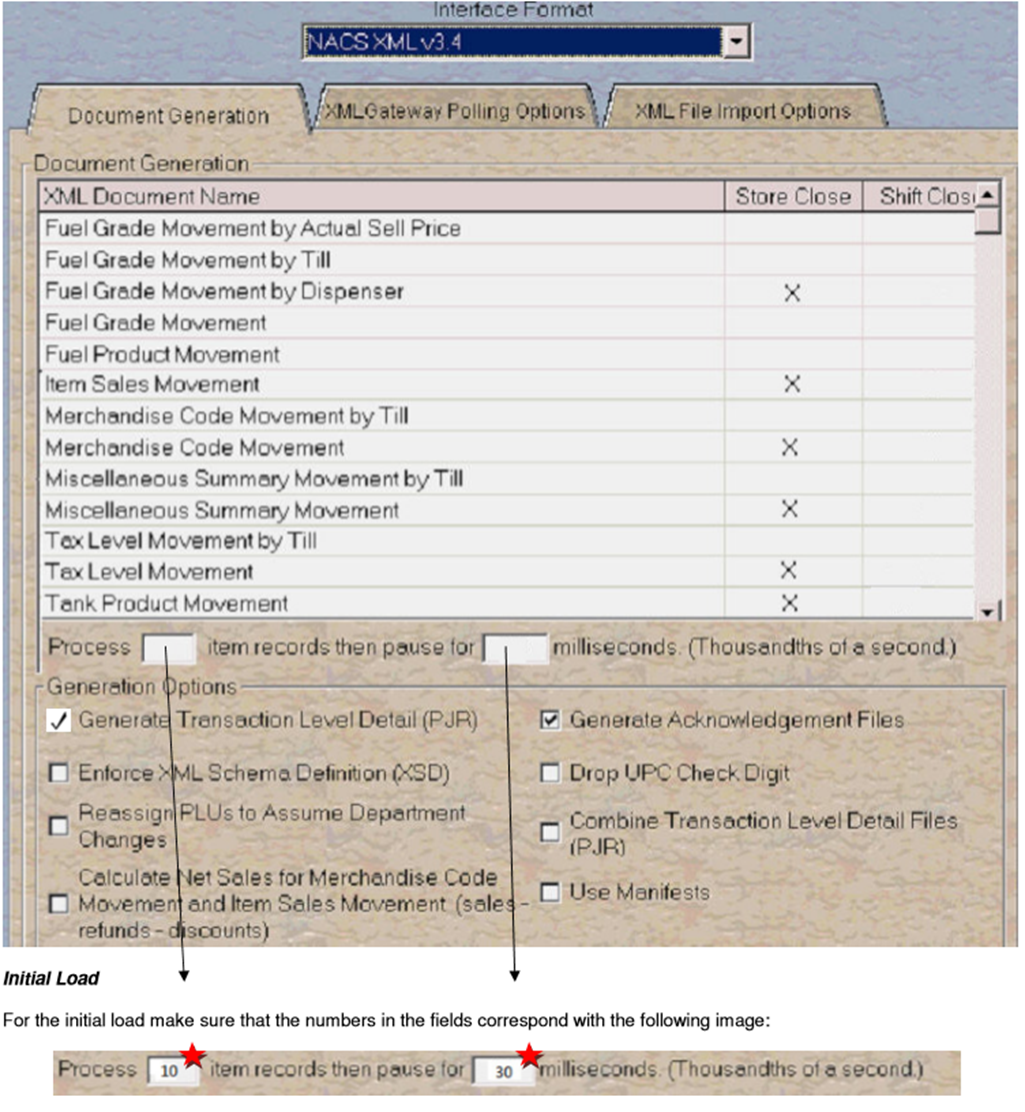
  1. Under “Interface Format”, select “XML v 3.4” from the dropdown list and change the “Process [1] item records then pause for [30] milliseconds to [300] milliseconds.
  2. Under “Generation Options” check the following options ONLY:  

Generate Acknowledgement Files, Generate Transaction Level Detail (PJR) 

Note: Turning this feature on generates PJR files for every single transaction taken place in the location. Use this only if you are planning to track local credit/charge accounts, or if you are using the XSite Analytics software. 

(Make sure “Calculate Net Sales for Merchandise Code Movement and Item Sales Movement” is not checked) 

3. Select the “XML File Import Options” tab and make sure “0 for the base item” is selected. Also, make sure that no other options are selected and click “Save.”


document creation passport generation

Was this article helpful?

Yes
No
Give feedback about this article

Related Articles

  • How do I create a report?
  • How do I access shift details?

Copyright 2025 – XSite IO.

Knowledge Base Software powered by Helpjuice

Expand