Contact Us

If you still have questions or prefer to get help directly from an agent, please submit a request.
We’ll get back to you as soon as possible.

Please fill out the contact form below and we will reply as soon as possible.

  • Contact Us
  • Home
  • Set Up My Store
  • First-Time Setup

Activate my price book on the POS (Bulloch)

Sync and apply price changes at the point of sale

Written by Michael Cook

Updated at December 18th, 2025

Contact Us

If you still have questions or prefer to get help directly from an agent, please submit a request.
We’ll get back to you as soon as possible.

Please fill out the contact form below and we will reply as soon as possible.

  • Set Up My Store
    First-Time Setup Connect & Sync Systems Before You Start Using XSite
  • Manage Prices, Items & Accounts
    Items Departments & Taxes Promotions Accounts
  • Track Inventory
    Purchase Orders & Receiving Counts & Adjustments Case Breakdown
  • Fuel & Pump Sales
    Fuel Setup & Suppliers Fuel Operations
  • Mobile & Scanning
    Devices & Setup Using XSite Mobile
  • Reports & Numbers
    Getting Started with Reports Sales & Price Book Reports Inventory Reports Fuel Reports Charge Accounts Reports Advanced Reports
  • Users, Roles & Settings
    Users & Access Suppliers & Regions
  • Fix a Problem
    Data Not Updating Numbers Don't Match Fuel Issues
+ More

Table of Contents

Before you begin Steps Sync the price book from XSite Update the price book on Bulloch Activate the updated prices Tips & Warnings

This article shows you how to sync the XSite price book and activate the updated prices on the Bulloch POS system so item prices at the POS are accurate and up to date and customers are charged correctly.

Before you begin

Before you start, make sure:

  • You have finished making price changes in XSite.
  • You have access to the Bulloch POS.
  • The store is not busy, and no customers are actively pumping fuel.

Steps

Sync the price book from XSite

  1. In XSite, locate the [Sync] button at the top of the screen.
  2. Click [Sync] to send the updated price book.
  3. Wait 1 to 2 minutes for the file to transfer.

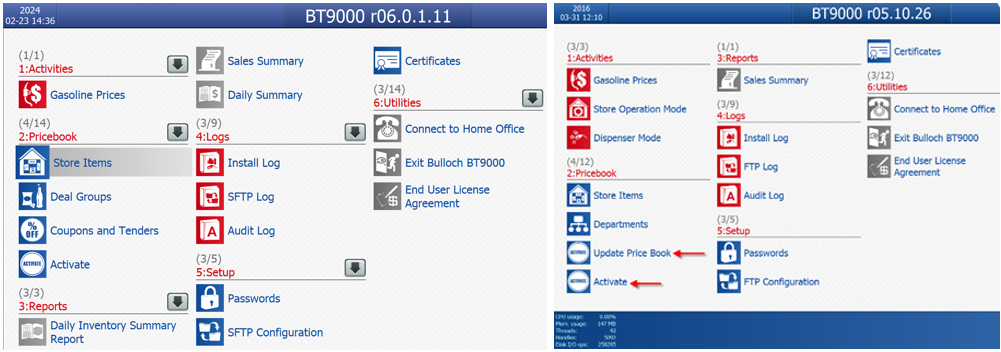
Update the price book on Bulloch

  1. On the Bulloch POS, click [Menu].
  2. Select [Utilities].
  3. Click [Connect to Home Office].
  4. Wait for the connection to complete.
  5. Return to [Menu].
  6. Under [2: Pricebook], select [Update Price Book].
  7. If options are not visible, click the [down arrow] to expand the list.
Activate the updated prices

  1. When prompted, click [Activate].
  2. Wait for activation to finish.
  3. Check a few items on the POS to confirm prices updated.

Tips & Warnings

  • Always sync in XSite before updating the price book on Bulloch.
  • Do not activate prices while fuel is being pumped.
  • If prices do not update, repeat the steps and allow extra time between actions.
  • Perform price updates during slower hours to avoid disrupting sales.

sync price book price book activation send prices to pos prices not updating wrong prices at pos price changes not applied

Was this article helpful?

Yes
No
Give feedback about this article

Related Articles

  • Log in to XSite
  • Configure my car wash
  • Bulloch Quick Reference Guide
  • NCR to Bulloch Replacement in Canada

Copyright 2025 – XSite IO.

Knowledge Base Software powered by Helpjuice

Expand